AI Features
KubeStellar Klaude Console uses AI to help you manage your clusters. Think of it as having a helpful assistant who knows Kubernetes.
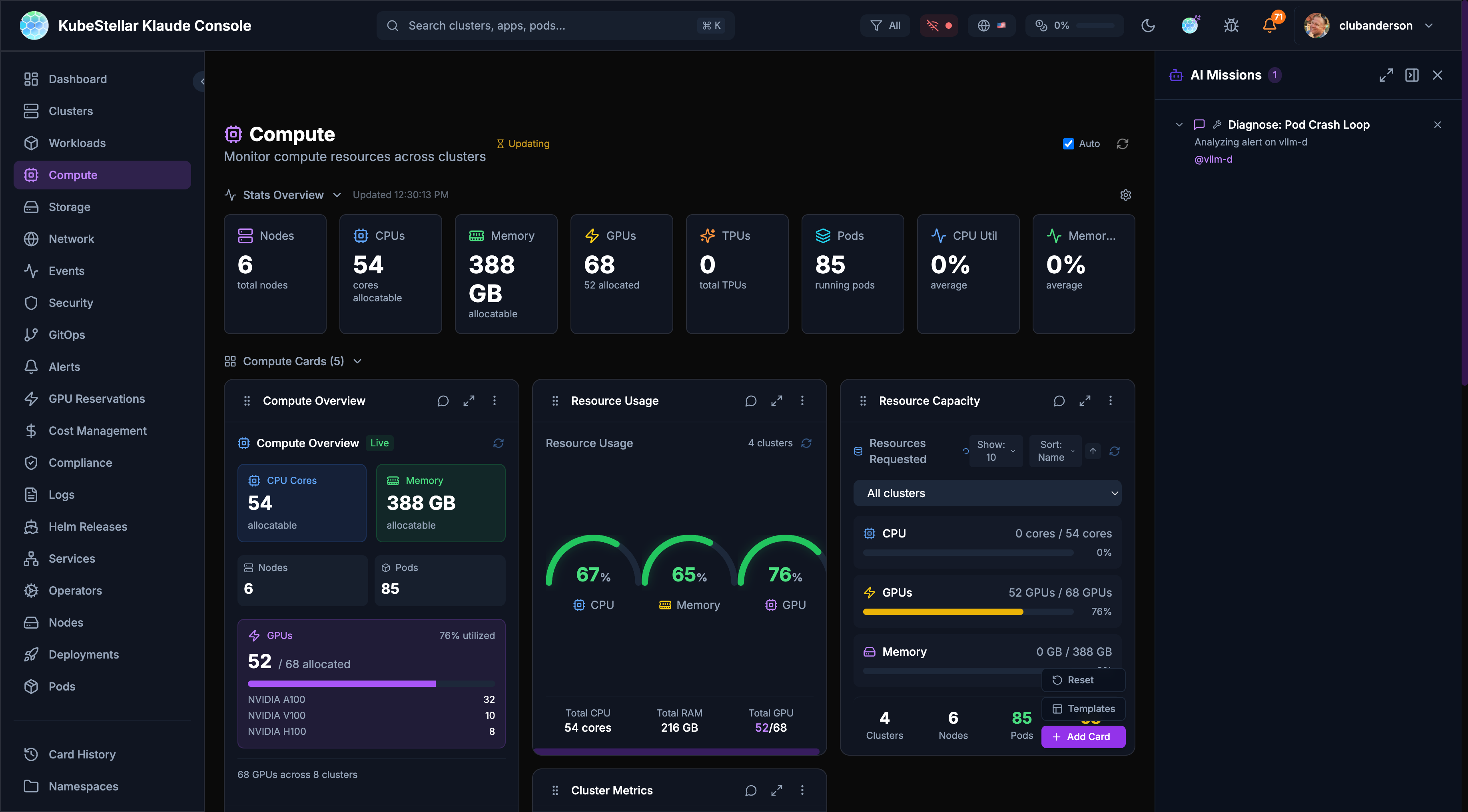
AI Missions
AI Missions are conversations with AI to solve problems. Click the mission button in the bottom right to start.
What Can You Do?
| Mission Type | What it does |
|---|---|
| Troubleshoot | Find out why something is broken |
| Analyze | Understand what’s happening |
| Repair | Fix problems automatically |
| Upgrade | Plan and execute upgrades |
| Deploy | Help deploy applications |
How It Works
- Click “AI Missions” button (bottom right)
- Choose a mission type or describe your problem
- AI asks questions to understand the issue
- AI runs commands and analyzes results
- AI suggests fixes or takes action
- You approve or reject the suggestions
Example: Troubleshooting a Crash
You: “Why is my nginx pod crashing?”
AI: “Let me check. I found the pod nginx-abc123 in namespace default is in CrashLoopBackOff. Looking at the logs…
The container is failing because it can’t bind to port 80. There’s already a process using that port.
Suggestion: Change the container port to 8080 or remove the conflicting service.”
Mission Panel Features
- Full screen - Expand for more space
- Minimize - Hide while AI works
- Collapse - Show just the title
- Multiple missions - Run several at
- Token tracking - See how many tokens used
AI Diagnose
Every card has an “Ask AI” button. Click it to get AI analysis of that specific data.
How to Use
- Look at any card
- Click the AI icon (brain/sparkle)
- AI analyzes the card data
- Get insights and suggestions
What AI Can Tell You
- Why metrics look unusual
- What’s causing issues
- How to fix problems
- What to watch out for
- Historical context
Example
Card: Cluster Health showing 2 clusters offline
AI: “I see 2 clusters are offline. Let me check…
cluster-1: Network timeout - likely a firewall issuecluster-2: Certificate expired 2 hours ago
Suggestions:
- Check VPN connection for cluster-1
- Renew certificate for cluster-2 with
kubectl certificate approve”
AI Repair
When AI diagnoses a problem, it can often fix it automatically.
How Repair Works
- AI identifies the problem
- AI creates a fix
- You review the fix
- You approve or reject
- AI applies the fix
Safety First
- AI always asks before making changes
- You see exactly what will change
- You can reject any action
- Changes are logged
What AI Can Repair
- Pod issues - Restart stuck pods, fix resource limits
- Certificate problems - Approve pending certificates
- Configuration errors - Fix ConfigMaps and Secrets
- Scaling issues - Adjust replica counts
- Resource quotas - Suggest adjustments
Smart Suggestions
AI watches how you use the console and suggests improvements.
Card Swap Suggestions
When AI notices you’re focusing on different things:
- AI detects focus change
- Shows a suggestion with countdown
- You can:
- Accept - Swap to the new card
- Snooze - Hide for 1 hour
- Keep - Stay with current card
- Cancel - Dismiss suggestion
What Triggers Suggestions?
- Spending time on a specific card
- Clicking into details repeatedly
- Issues appearing in your clusters
- Changes in cluster state
Example
You’ve been looking at pod issues for 5 minutes
AI Suggestion: “I notice you’re focused on pod issues. Would you like to swap the Cluster Metrics card for a Pod Health Trend card?”
AI Mode Levels
Control how much AI assistance you get:
Low Mode (~10% tokens)
- AI responds when you ask
- Direct kubectl commands
- Best for: Cost control
Medium Mode (~50% tokens)
- AI analyzes on request
- Summaries and insights
- Best for: Balanced usage
High Mode (~100% tokens)
- Proactive suggestions
- Auto-analysis of issues
- Card swap recommendations
- Best for: Maximum assistance
Changing AI Mode
- Go to Settings (
/settings) - Find “AI Mode”
- Select your preferred level
- Changes apply immediately
Token Usage
AI features use tokens, which may have costs. The console tracks usage.
Viewing Token Usage
- Header bar - Shows percentage used
- Settings page - Detailed breakdown
- Mission panel - Per-mission tracking
Token Limits
You can set limits to control costs:
ai:
  tokenLimits:
    enabled: true
    monthlyLimit: 100000
    warningThreshold: 80   # Warn at 80%
    criticalThreshold: 95  # Restrict at 95%
When you hit the warning threshold, you’ll see a notification. At the critical threshold, some AI features are restricted.
Tips for Saving Tokens
- Use Low or Medium mode for routine work
- Switch to High mode when troubleshooting
- Use direct kubectl for simple queries
- Review mission history to avoid duplicates
Privacy & Safety
What AI Sees
- Cluster names and namespaces
- Pod and deployment names
- Resource metrics
- Event messages
- Log snippets (when you share them)
What AI Doesn’t See
- Your kubeconfig credentials
- Secrets or sensitive data
- Personal information
- Data from other users
Data Handling
- AI analysis happens through Anthropic’s API
- According to Anthropic’s data usage policy, data sent via their API is not used to train Anthropic models by default. For details, see Anthropic’s privacy and data usage documentation.
- Conversations are stored locally
- You can delete mission history anytime