Alerts & Token Usage
Stay informed about what’s happening in your clusters with configurable alerts. Plus, track and control your AI token usage.
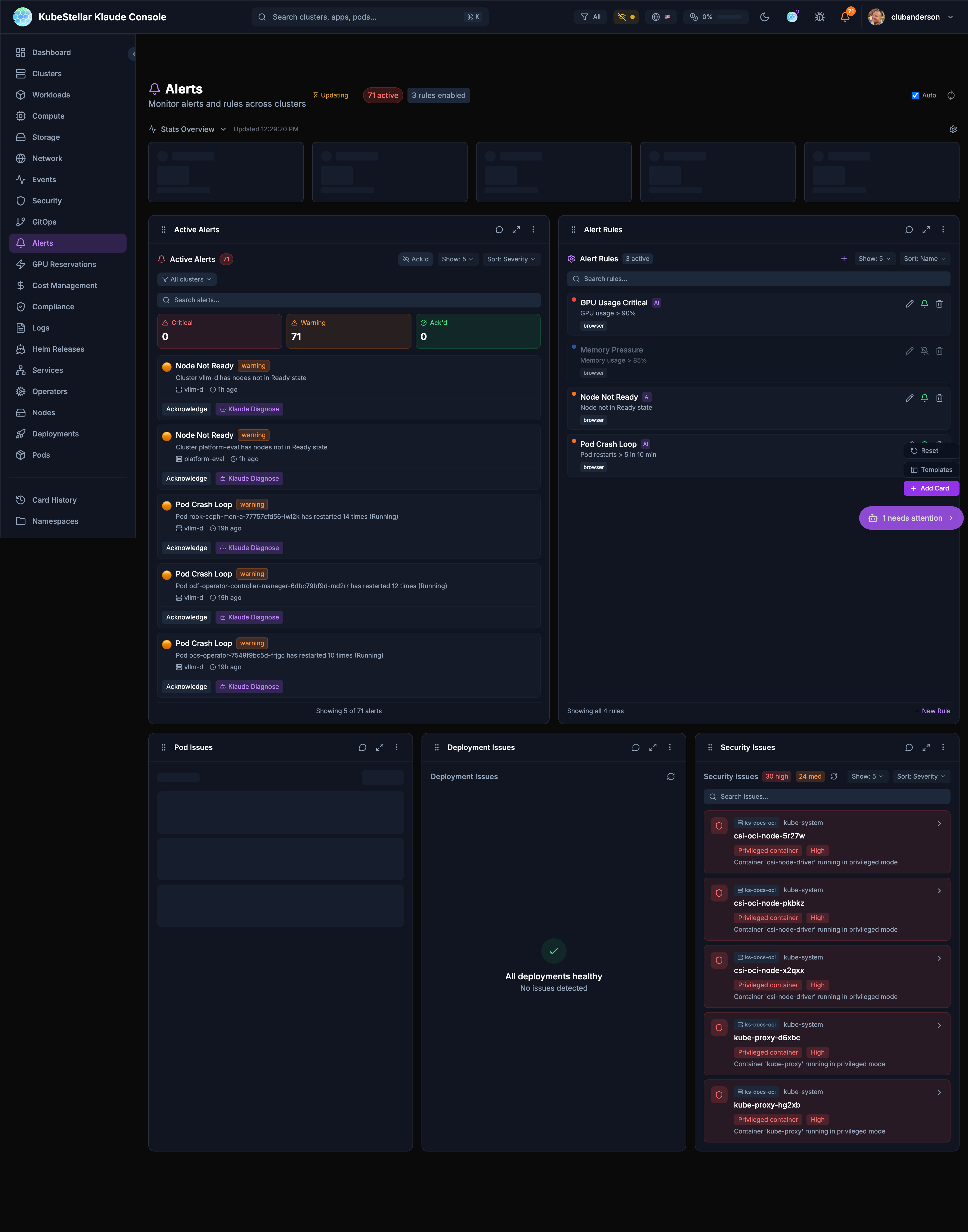
Alerts Overview
Alerts tell you when something needs attention. You control:
- What triggers alerts
- How you get notified
- Whether AI should diagnose them
Alert Types
| Type | What it watches |
|---|---|
| GPU Usage | GPU utilization exceeds threshold |
| Node Not Ready | A node becomes unavailable |
| Pod Crash | Pod enters CrashLoopBackOff |
| Memory Pressure | Memory usage is too high |
| CPU Pressure | CPU usage is too high |
| Disk Pressure | Disk space is running low |
| Custom | Your own conditions |
Alert Severity
Three levels:
| Severity | Color | Meaning |
|---|---|---|
| Critical | Red | Needs immediate attention |
| Warning | Yellow | Should be addressed soon |
| Info | Blue | Good to know |
Creating Alert Rules
Built-in Rules
The console comes with preset rules:
| Rule | Condition | Severity |
|---|---|---|
| GPU Usage Critical | >90% for 5 min | Critical |
| Node Not Ready | Any node, 1 min | Critical |
| Pod Crash Loop | >5 restarts in 10 min | Warning |
| Memory Pressure | >85% for 5 min | Warning (disabled) |
Custom Rules
Create your own rules:
- Go to Alerts dashboard (
/alerts) - Click “Create Rule”
- Configure:
- Name - What to call this rule
- Condition - What triggers it
- Threshold - The limit
- Duration - How long before alerting
- Severity - Critical, Warning, or Info
- Clusters - Which clusters to watch
- Namespaces - Which namespaces to watch
- Enable AI Diagnose for automatic analysis
- Save
Example: High Memory Alert
Name: High Memory Usage
Condition: Memory > 80%
Duration: 10 minutes
Severity: Warning
Clusters: production-*
AI Diagnose: Enabled
Notification Channels
Choose how you want to be notified:
Browser Notifications
- Pop-up notifications in your browser
- Click to jump to the alert
- Works even when the tab is in background
How to enable:
- Go to Settings
- Allow browser notifications when prompted
Slack
- Send alerts to a Slack channel
- Include alert details
- Great for team visibility
How to set up:
- Create a Slack webhook URL
- Go to Settings > Alert Channels
- Add Slack webhook
- Select which alerts go to Slack
Webhooks
- Send alerts to any URL
- Use for custom integrations
- JSON payload with alert details
Webhook payload:
{
  "alert": {
    "name": "GPU Usage Critical",
    "severity": "critical",
    "status": "firing",
    "cluster": "prod-east",
    "message": "GPU usage at 95%"
  },
  "timestamp": "2024-01-15T10:30:00Z"
}
AI Diagnosis for Alerts
When enabled, AI automatically analyzes alerts.
What AI Provides
- Summary - Quick overview of the issue
- Root Cause - What’s likely causing it
- Suggestions - How to fix it
- Mission Link - Click to start AI troubleshooting
Example AI Diagnosis
Alert: Pod Crash Loop

Summary: The nginx-abc123 pod has restarted 7 times
in the last 10 minutes.

Root Cause: The container is exiting with code 137,
indicating an OOM (Out of Memory) kill.

Suggestions:
1. Increase memory limit from 128Mi to 256Mi
2. Check application for memory leaks
3. Review recent deployments for changes
Managing Alerts
Alert Statuses
| Status | Meaning |
|---|---|
| Firing | Alert is active |
| Pending | Condition met, waiting for duration |
| Resolved | Issue no longer present |
Acknowledging Alerts
Click Acknowledge to:
- Record that you’ve seen it
- Track who acknowledged and when
- Keep for future reference
Clearing Alerts
Alerts auto-resolve when the condition clears. You can also manually close alerts that are no longer relevant.
Token Usage
AI features use tokens. Track and control your usage.
Where to See Usage
- Header bar - Quick percentage view
- Settings page - Detailed breakdown
Understanding Tokens
Tokens are like words that AI reads and writes:
- Reading your question uses tokens
- AI’s response uses tokens
- Longer conversations use more tokens
Token Limits
Set limits to control costs:
| Setting | What it does |
|---|---|
| Monthly Limit | Maximum tokens per month |
| Warning Threshold | % when to show warning |
| Critical Threshold | % when to restrict features |
What Happens at Limits
- At Warning (e.g., 80%) - You see a notification
- At Critical (e.g., 95%) - Some AI features disabled
- At Limit (100%) - AI features pause until next month
Reducing Token Usage
- Use Low AI mode for routine work
- Keep mission conversations focused
- Avoid asking the same question repeatedly
- Use direct kubectl for simple queries
Settings Page
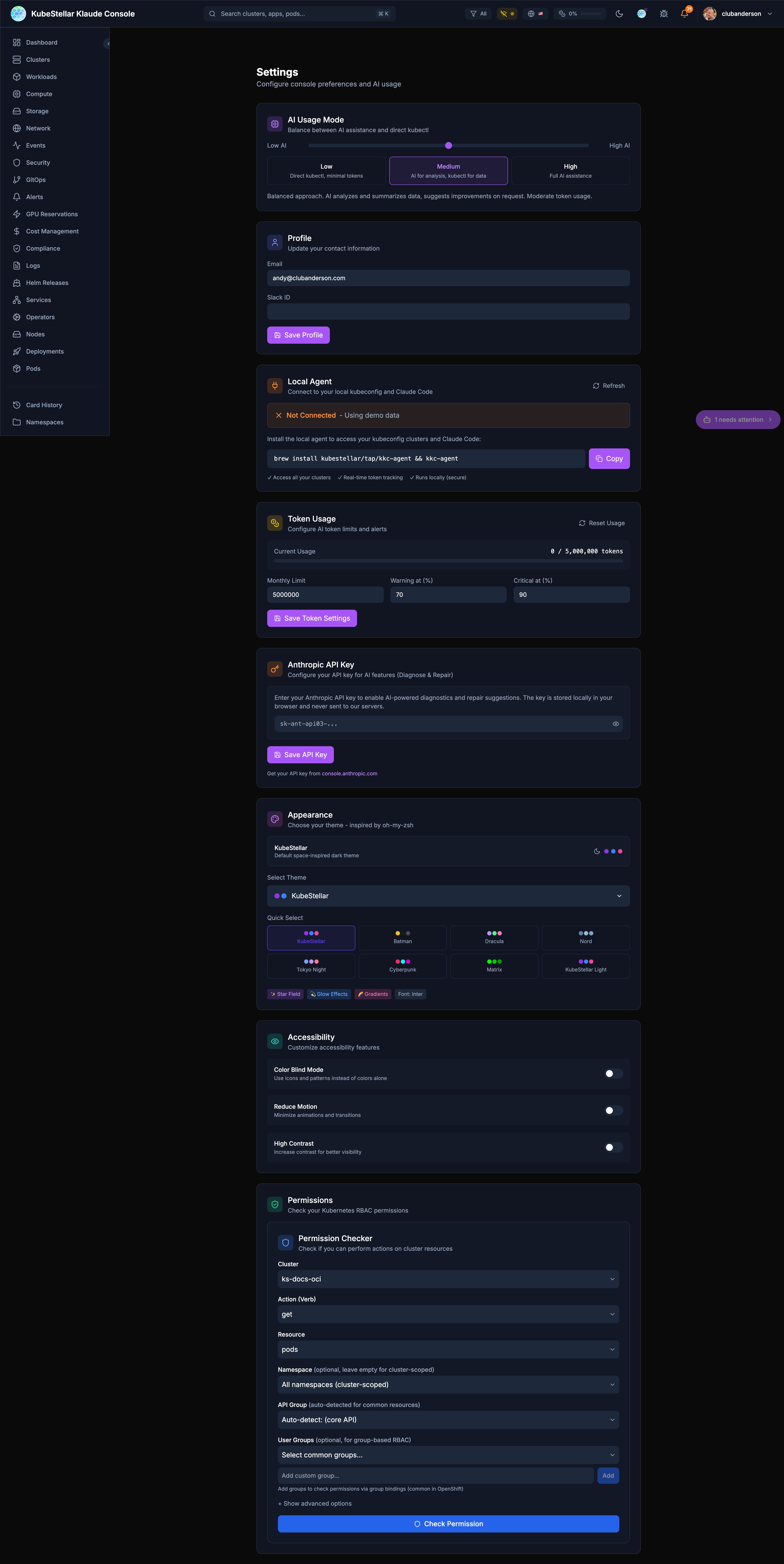
The Settings page shows:
- Current AI mode
- Token usage this month
- Alert notification preferences
- Connected channels (Slack, webhooks)
Best Practices
For Alerts
- Start with defaults - Built-in rules are a good starting point
- Don’t over-alert - Too many alerts leads to alert fatigue
- Use severity wisely - Reserve Critical for real emergencies
- Enable AI diagnose - Let AI help understand issues
For Token Usage
- Match mode to task - High mode for troubleshooting, Low for monitoring
- Review usage weekly - Stay ahead of limits
- Set reasonable limits - Balance cost vs. usefulness
For Notifications
- Use Slack for teams - Everyone sees important alerts
- Keep browser on - For personal notifications
- Don’t over-notify - critical to Slack, rest to browser